¶ CHIM XTTS
CHIM XTTS is the original TTS solution for CHIM, offering reliable voice generation with good quality.

Installing CHIM XTTS
- Open the CHIM Launcher
- Click Install Components
- Click 🗣CHIM XTTS
- Follow the on-screen instructions
- Wait for the message: Uvicorn running on http://0.0.0.0:8020 (Press CTRL+C to quit)
- Close the installer window
¶ Finetune XTTS (Advanced Settings)
Credit: @ErikErix
Just go to: \wsl.localhost\DwemerAI4Skyrim3\home\dwemer\xtts-api-server\xtts_api_server and open tts_funcs.py with Notepad++ and you will see:
default_tts_settings = {
"temperature": 0.75,
"length_penalty": 1.0,
"repetition_penalty": 5.0,
"top_k": 50,
"top_p": 0.85,
"speed": 1,
"enable_text_splitting": True
}
After that it is up to your creativity. 🙂 To apply you need to save and restart the server every time.
Cloud Option:
Here is a guide if you want to run CHIM XTTS on the cloud to save VRAM.
¶ PocketTTS
Important: You need to setup a HuggingFace account to download the Chatterbox model. Its 100% free and can be done here: https://huggingface.co/settings/tokens
PocketTTS is a CPU-based TTS solution, making it perfect for systems with AMD GPUs or those wanting to save VRAM.
This is an ideal TTS for AMD users due to it's CPU only nature.

Installing PocketTTS
- Open the CHIM Launcher
- Click Install Components
- Click 🗣PocketTTS
- Follow the on-screen instructions
- Custom Voice Generation Setup (Optional but highly recommended):
- You will be asked if you want to enable custom voice generation
- If Yes: You'll need to set up HuggingFace access
- Accept the terms at huggingface.co/kyutai/pocket-tts
- Create a token at HuggingFace Settings → Tokens with READ permission
- Enter your token when prompted
- If No: You can still use the built-in catalog voices. This will be worse for Skyrim roleplay.
- Wait for the message: Uvicorn running on http://0.0.0.0:8020 (Press CTRL+C to quit)
- Close the installer window
¶ Using Built-in Catalog Voices
If you skip HuggingFace setup, you can still use PocketTTS BUT ONLY with these preset voices:
- alba
- marius
- javert
- jean
- fantine
- cosette
- eponine
- azelma

Chatterbox
CHATTERBOX DOES NOT WORK NATIVELY WITH RTX50XX CARDS DUE TO IT'S ARCHITECTURE. WE HAVE A GUIDE BELOW FOR MAKING IT WORK WITH 50XX SERIES.
Important: You need to setup a HuggingFace account to download the Chatterbox model. Its 100% free and can be done here: https://huggingface.co/settings/tokens
Also chatterbox requires at minimum a 5 second audio sample for it to work.
How It Works
Both XTTS and Chatterbox work the same way:
- The DwemerDistro comes with no AI voice files! (Well, just one for the narrator…)
- Instead, when using XTTS/Chatterbox, the NPC's AI voice will be generated automatically ingame!
- When an AI NPC is activated, the plugin will search for compatible audio files within the Skyrim data folder.
- Default/Vanilla voicetype = "It just works"
- Custom voicetype = Must ensure to engage in conversation before activating them! Longer sentences spoken by the NPC will help achieve more accurate voice generation.
- These audio files will be sent to the XTTS/Chatterbox server in the DwemerDistro for generation and cached in the CHIM server under data/voices.
- A generated voiceid will be created based on their ingame voicetype. This can be changed to be based on name.
You can still override voices manually - the automatic in-game generation won't overwrite voices.If you set everything up correctly, you will be easily able to talk to ANY NPC (with an ingame voice) without any prior setup required!You can also manually upload .wav files for generation under
Configuration → XTTS/Chatterbox Management
Installing CHIM XTTS
- Open the CHIM Launcher
- Click Install Components
- Click 🗣CHIM XTTS
- Follow the on-screen instructions
- Wait for the message: Uvicorn running on http://0.0.0.0:8020 (Press CTRL+C to quit)
- Close the installer window
Finetune XTTS (Advanced Settings) Credit: @ErikErix
Just go to: \wsl.localhost\DwemerAI4Skyrim3\home\dwemer\xtts-api-server\xtts_api_server and open tts_funcs.py with Notepad++ and you will see there:
default_tts_settings = {
"temperature" : 0.75,
"length_penalty" : 1.0,
"repetition_penalty": 5.0,
"top_k" : 50,
"top_p" : 0.85,
"speed" : 1,
"enable_text_splitting": True
-After that it is up to your creativity. 🙂 To apply you need to save and restart the server every time.
Installing Chatterbox
- Open the CHIM Launcher
- Click Install Components
- Click 🗣Chatterbox
- Hugging Face Authentication: You will be prompted to log in to Hugging Face. This is required to download certain models. If you don't have an account, create one at huggingface.co
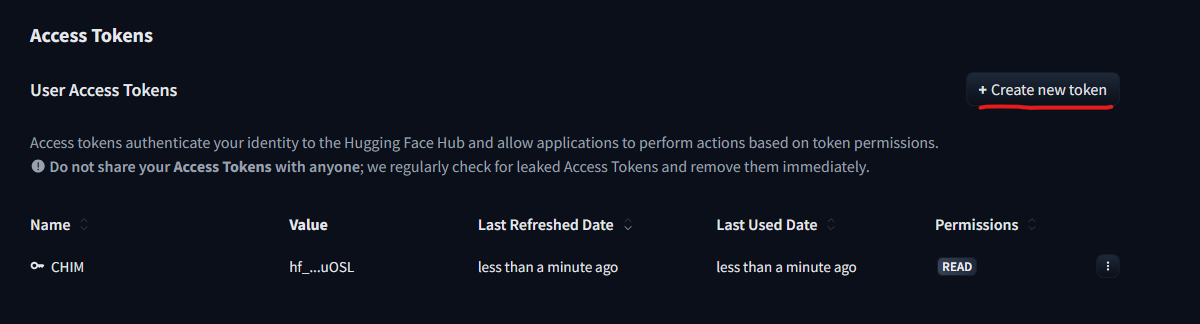
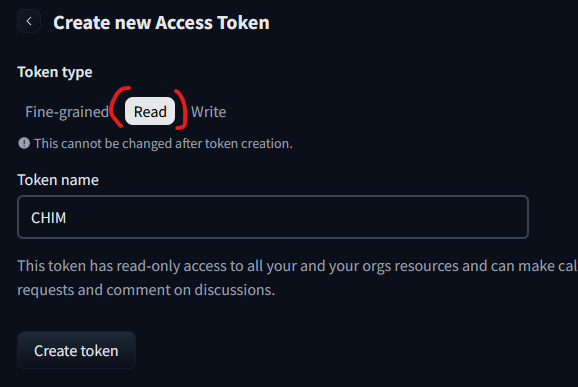
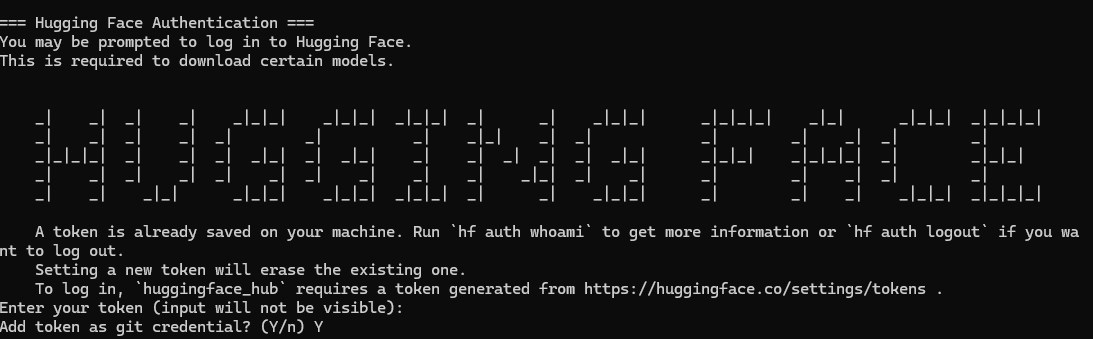
- Press ENTER when prompted to start the service and download the model
- Wait for the message: Uvicorn running on http://0.0.0.0:8020 (Press CTRL+C to quit)

- Close the installer window
¶ Chatterbox TTS Fix for RTX 50xx (DwemerDistro)
Chatterbox doesn't work on RTX 50xx GPUs due to PyTorch compatibility issues. Additionally, the tts_to_audio endpoint returns 500 errors due to a missing TorchCodec/FFmpeg dependency.
Chatterbox doesn't work on RTX 50xx GPUs due to PyTorch compatibility issues. Additionally, the tts_to_audio endpoint returns 500 errors due to a missing TorchCodec/FFmpeg dependency.
Step 1: Activate the Chatterbox venv
cd /home/dwemer/chatterbox
source venv/bin/activate
Step 2: Install Chatterbox dependencies
pip install -e .
(This will install chatterbox-tts and its pinned dependencies)
Step 3: Replace PyTorch with 50xx-compatible nightly build
pip uninstall -y torch torchvision torchaudio
pip install --no-cache-dir --pre torch torchvision torchaudio --index-url https://download.pytorch.org/whl/nightly/cu128
You'll see dependency conflict warnings — ignore them, it works fine.
Step 4: Install scipy
pip install scipy
Step 5: Fix the audio save error
The nightly torch breaks torchaudio's save function (requires TorchCodec/FFmpeg).
Fix by editing restapi.py:
nano /home/dwemer/chatterbox/restapi.py
Find this line in the tts_to_audio function:
python ta.save(buffer, wav, model.sr, format="wav")
Replace it with:
python import scipy.io.wavfile scipy.io.wavfile.write(buffer, model.sr, wav.squeeze(0).cpu().numpy())
Save and exit (Ctrl+O, Ctrl+X).
Or use sed:
sed -i 's| ta.save(buffer, wav, model.sr, format="wav")| import scipy.io.wavfile\n scipy.io.wavfile.write(buffer, model.sr, wav.squeeze(0).cpu().numpy())|' /home/dwemer/chatterbox/restapi.py
Step 6: Log in to HuggingFace (first time only)
huggingface-cli login
Paste your token from https://huggingface.co/settings/tokens
Step 7: Test
python restapi.py
Server should start on http://0.0.0.0:8020. Model weights download on first run.
Notes:
- The pip install -e . step will downgrade torch. That's why the torch nightly install comes AFTER — it overwrites the downgrade.
- Dependency conflict warnings about torch==2.6.0 vs nightly are expected and harmless.
- The scipy fix bypasses torchaudio entirely for WAV saving. Same audio output, no FFmpeg dependency.
- Tested on RTX 5080, DwemerDistro, CHIM 2.3.3.
- HuggingFace token only needed for first run to download model weights. Gets cached after that.
¶ Mantella XTTS
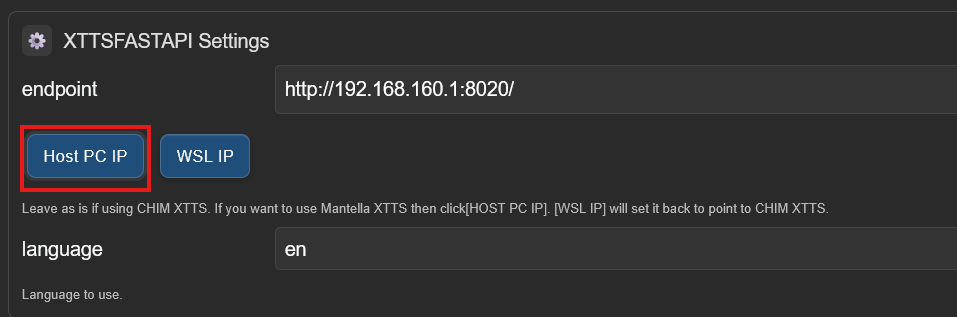
We also provide support for Mantella XTTS. It requires a few configuration changes but is rather simple to set up.
You may also need to enable your firewall to allow apps through to WSL2:
https://superuser.com/questions/1714002/wsl2-connect-to-host-without-disabling-the-windows-firewall
- Download it here: https://www.nexusmods.com/skyrimspecialedition/mods/113445
- Run the program and leave it running in the background.
¶ Regarding AI Voices
Any voices you see from videos of people who do not wish to be generated are done by users without our permission.
WE CAN NOT CONTROL THIS!
WE DO NOT CONDONE THE USE OF THE TOOLS PROVIDED TO GENERATE AI VOICES OF THOSE WHO DO NOT WISH TO BE AI GENERATED.
We will not now or in the future provide training data or voice files for anyone who does not wish to be generated within our mod files.
¶ Zonos TTS
Zonos TTS is one of the most powerful TTS services supported by CHIM.
It has rather life like voices and emotion, but at the cost of having a 6GB VRAM requirement.
This makes it very hard to run both Skyrim and Zonos on the same machine unless you have a super computer!
There are 3 ways you can run Zonos:
- On your local machine within the DwemerDistro (Patch to download and install it can be found here)
- On Vast.AI, a cloud computing provider, (Recommended): https://cloud.vast.ai/?ref_id=177752&creator_id=177752&name=CHIM-Zonos%20(WORKING)
- Note: The instance must be at least Cuda Ver 12.4 and can't use RTX 50xx
- On RunPods, a cloud computing provider:
https://www.runpod.io/console/explore/kf529jocf4
Here is a guide if you want to run Zonos on the cloud to save VRAM.
Zonos works quite simply.
Whatever voices are in your voice cache, will be used to generate an AI voice every-time it makes an TTS request. You do not need to sync any voices on startup. Using the XTTS Management upload feature will place any new voices into your cache.
If playing normally most voices for NPCs should be in your cache already.
You can manually upload new voices using the CHIM XTTS Management page to place new voices in your voice cache.
¶ xVASynth
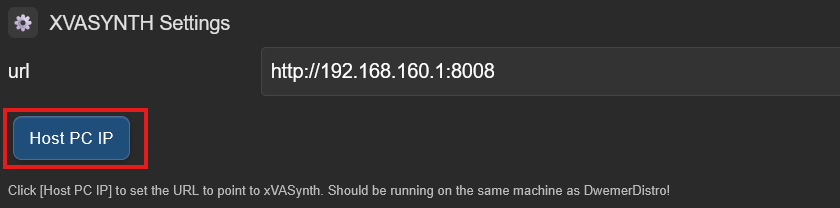
There is not too much for us to say about the xVASynth implementation. It's a decent TTS service that's been around for a few years now and is simple to install. However it does lack some voices compared to MeloTTS or CHIM XTTS.
You may also need to enable your firewall to allow apps through to WSL2:
https://superuser.com/questions/1714002/wsl2-connect-to-host-without-disabling-the-windows-firewall
It’s pretty easy to set up and install:
- Download it here and download all the voicetypes: https://www.nexusmods.com/skyrimspecialedition/mods/44184
- Go into the settings menu for xVASynth and modify it to use your GPU.
- Install all the voicetypes you downloaded into xVASynth.
¶ MeloTTS
MeloTTS is one of our recommended TTS services for you to use. It is free, runs locally, and with a low hardware requirement. Currently we have all the default approved Skyrim Voices trained using it. The quality is not as good compared to CHIM XTTS, but it will allow all players to have easy access to a comprehensive TTS service. There is no current way to easily train more voices using the Distro.
It is rather easy to set up. It can be installed using the main installation script or as an optional component folder in the Distro. You can run it on CPU (required usage for AMD users), or GPU (which is faster). After that just select it as the TTS service in the default profile, and speak to any vanilla NPC. They will automatically be allocated with an appropriate voice whenever they are activated.
We do recommend that you use CHIM XTTS if you have the hardware to do so as it is much better quality.
Here is a guide to run it on the cloud (down below in this document): CHIM Manual
The reason we have MeloTTS support is for users who can not run other more powerful TTS services while supporting all Skyrim like voices.
All our current MeloTTS voices are listed at the bottom of this document.
More info on MeloTTS can be found here: https://github.com/myshell-ai/MeloTTS
¶ Cartesia TTS
Cartesia TTS is a cloud-based TTS service similar to ElevenLabs, but at around ¼ of the price!
We have a video of it in action here: https://www.youtube.com/watch?v=TXATmooLwLQIt
Key Features:
- Automatic voice cloning from in-game audio samples
- High-quality AI voice generation using Cartesia's Sonic model
- Multi-language support (English, Spanish, French, German, Italian, Portuguese, Polish, Turkish, Russian, Dutch, Czech, Arabic, Chinese, Japanese, Hungarian, Korean, Hindi)
- Adjustable speed controls (slowest, slow, normal, fast, fastest)
- Voice IDs are cached after first generation, so subsequent uses are faster
How It Works:
- When you activate an NPC, CHIM looks for a voice sample in data/voices matching their voicetype
- If this is the first time, the voice sample is uploaded to Cartesia and cloned using "similarity mode" for best results
- The cloned voice ID is cached in the database for future use
- All subsequent TTS requests use the cached voice ID for that NPC
Setup:
- Create an account here: https://play.cartesia.ai/sign-in?redirect_url=https%3A%2F%2Fplay.cartesia.ai%2Ftext-to-speech
- Signup for the $5 subscription. This will give you roughly 2 hours of audio.
- Create an API key and place it in the API Keys menu in CHIM (label it "Cartesia").
- In CHIM's Global Settings → TTS, select "Cartesia" as your TTS service.
- You can run a TTS test to see if it works.
- Ingame when you talk to any NPC they should now be using Cartesia to speak! May be a slight delay for the first time a voicetype is used.
¶ Inworld TTS
Inworld TTS is a cloud-based TTS service that provides high-quality voice generation similar to ElevenLabs, but at around ¼ of the price!
Video demo: https://www.youtube.com/watch?v=QEntIyHfX5g
Key Features:
- Automatic voice cloning from in-game audio samples
- High-quality AI voice generation
- Multi-language support (English, Japanese, Korean, Chinese, Spanish, French, German, Italian, Portuguese, Russian, Polish, Dutch, Arabic, Hindi, Hebrew)
- Voice IDs are cached after first generation, so subsequent uses are faster
How It Works:
- When you activate an NPC, CHIM looks for a voice sample in data/voices matching their voicetype
- If this is the first time, the voice sample is uploaded to Inworld and cloned
- The cloned voice ID is cached in the database for future use
- All subsequent TTS requests use the cached voice ID for that NPC
Setup:
- Create an account at Inworld Studio
- Create a workspace in Inworld Studio
- Generate an API credential (Base64 format) from your Inworld account
- In CHIM, go to API Keys and add your Inworld API credential
- In Global Settings → TTS, select "Inworld" as your TTS service
- Enter your workspace ID in the configuration fields
- Run a TTS test to verify everything works!
You can look in the TTS Studio page to see voices that are currently generated.
¶ PiperTTS
Piper is another TTS service that can run efficiently on low powered machines. It has a better quality than MeloTTS, but worse than XTTS.
It also uses the same voiceid logic as MeloTTS. List can be found below.
However you will need to manually download voices for it to work with CHIM.
How to install Piper Voices:
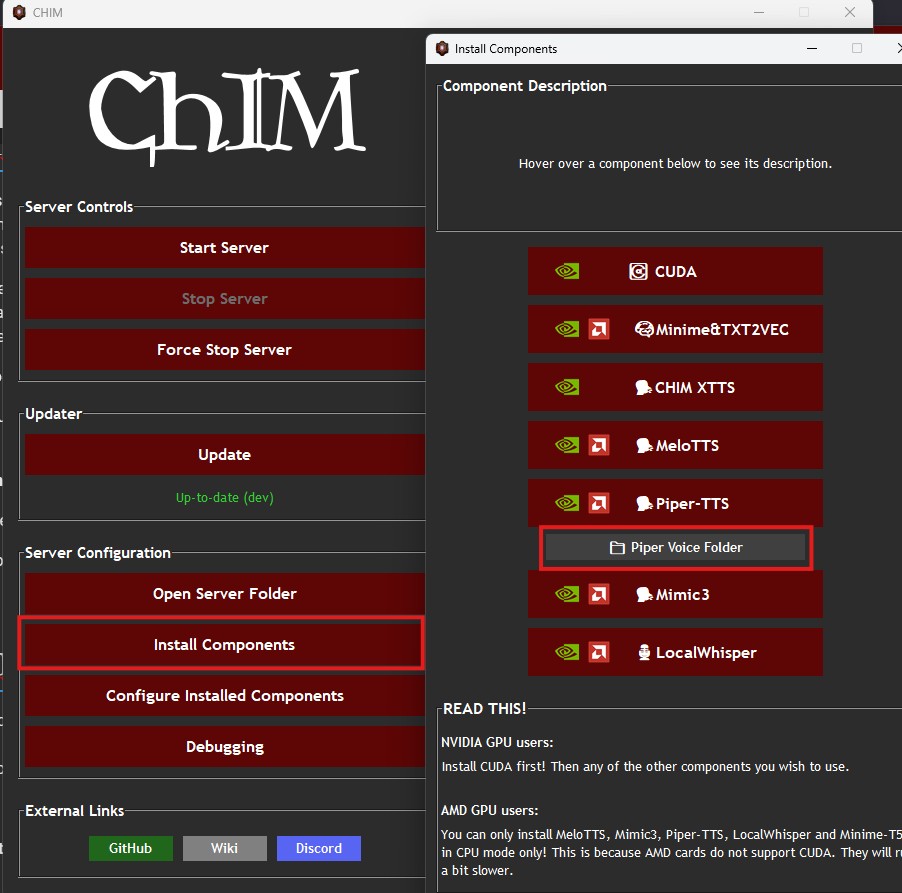
Make sure you actually installed Piper first!
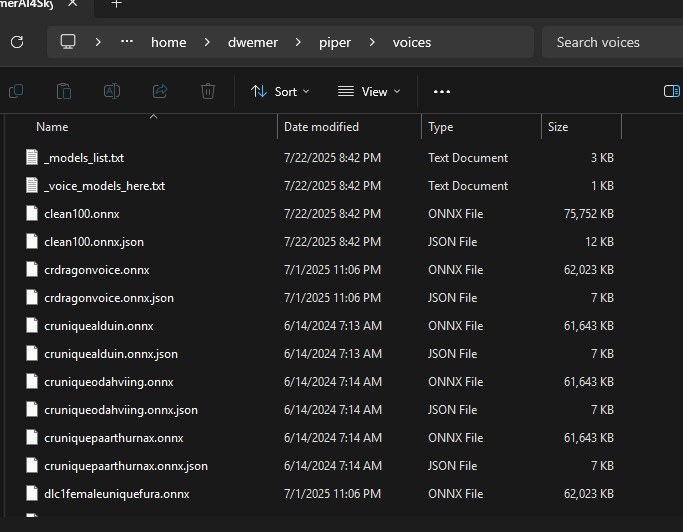
Piper Voice Links:
Mantella (Nexus, main mod), file size 4.1GB,
https://www.nexusmods.com/skyrimspecialedition/mods/98631?tab=files&file_id=632328
Mantella - Expanded Piper Models List (Nexus, optional), file size 1.3GB
https://www.nexusmods.com/skyrimspecialedition/mods/98631?tab=files&file_id=591368
Mantella Missing Voice Files - Male and Female Child (.onnx files), (Nexus):
https://www.nexusmods.com/skyrimspecialedition/mods/139736?tab=files&file_id=586124
Mantella Piper ZoraFairChild (Nexus)
https://www.nexusmods.com/skyrimspecialedition/mods/143687?tab=files&file_id=602216
Other Voices
https://huggingface.co/rhasspy/piper-voices
https://brycebeattie.com/files/tts/
¶ Voice ID's
- femaleargonian
- femalechild
- femalecommander
- femalecommoner
- femalecondescending
- femalecoward
- femaledarkelf
- femaleelfhaughty
- femaleeventoned
- femalekhajiit
- femaleneivavoice
- femalenord
- femaleoldgrumpy
- femaleoldkindly
- femaleorc
- femaleshrill
- femalesultry
- femaleuniqueastrid
- femaleuniqueazura
- femaleuniqueboethiah
- femaleuniquedelphine
- femaleuniqueelenwen
- femaleuniqueghost
- femaleuniquekarliah
- femaleuniquemaven
- femaleuniquemephala
- femaleuniquemeridia
- femaleuniquemirabelleervine
- femaleuniquenamira
- femaleuniquenightmother
- femaleuniquenocturnal
- femaleuniquevaermina
- femaleuniquevex
- femaleyoungeager
- maleargonian
- malebandit
- malebrute
- malechild
- malecommander
- malecommoner
- malecommoneraccented
- malecondescending
- malecoward
- maledarkelf
- maledrunk
- maleelfhaughty
- maleeventoned
- maleeventonedaccented
- maleforsworn
- maleguard
- malekhajiit
- malenord
- malenordcommander
- maleoldgrumpy
- maleoldkindly
- maleorc
- maleslycynical
- malesoldier
- maleuniqueamaundmotierre
- maleuniqueancano
- maleuniquearngeir
- maleuniqueaventusaretino
- maleuniquebrynjolf
- maleuniquecicero
- maleuniqueclavicusvile
- maleuniquedbblackdoor
- maleuniquedbguardian
- maleuniquedbspectrallachance
- maleuniquedelvinmallory
- maleuniqueemperor
- maleuniqueesbern
- maleuniquegallus
- maleuniquegalmar
- maleuniqueghost
- maleuniqueghostsvaknir
- maleuniquehadvar
- maleuniquehermaeusmora
- maleuniquehircine
- maleuniquekodlakwhitemane
- maleuniquemalacath
- maleuniquemehrunesdagon
- maleuniquemercerfrey
- maleuniquemgaugur
- maleuniquemolagbal
- maleuniquenazir
- maleuniqueperyite
- maleuniqueseptimus
- maleuniquesheogorath
- maleuniquetullius
- maleuniqueulfric
- malewarlock
- maleyoungeager
- specialfemaleuniquegormlaith
- specialmaleuniquefelldir
- specialmaleuniquehakon
- specialmaleuniquetsun
- dlc1femaleuniquefura
- dlc1femaleuniquevalerica
- dlc1femalevampire
- dlc1ld_femalenorduniquekatria
- dlc1maleuniquedexion
- dlc1maleuniqueflorentius
- dlc1maleuniquegaran
- dlc1maleuniquegelebor
- dlc1maleuniquegunmar
- dlc1maleuniqueharkon
- dlc1maleuniqueisran
- dlc1maleuniquejiub
- dlc1maleuniquesnowelfghost
- dlc1maleuniquevyrthur
- dlc1malevampire
- dlc1seranavoice
- dlc2crgiantvoicekarstaag
- dlc2femaledarkelfcommoner
- dlc2femaleuniquefrea
- dlc2maledarkelfcommoner
- dlc2maledarkelfcynical
- dlc2maleuniqueadril
- dlc2maleuniquelleril
- dlc2maleuniquemiraak
- dlc2maleuniquemodyn
- dlc2maleuniqueneloth
- dlc2maleuniquestorn